Custom Field Mapping: Move Every Keap Field into GoHighLevel
Map any Keap standard or custom field to a GoHighLevel custom field, or create matching fields in one click. Your mappings are saved per account pair, so repeat imports start instantly.
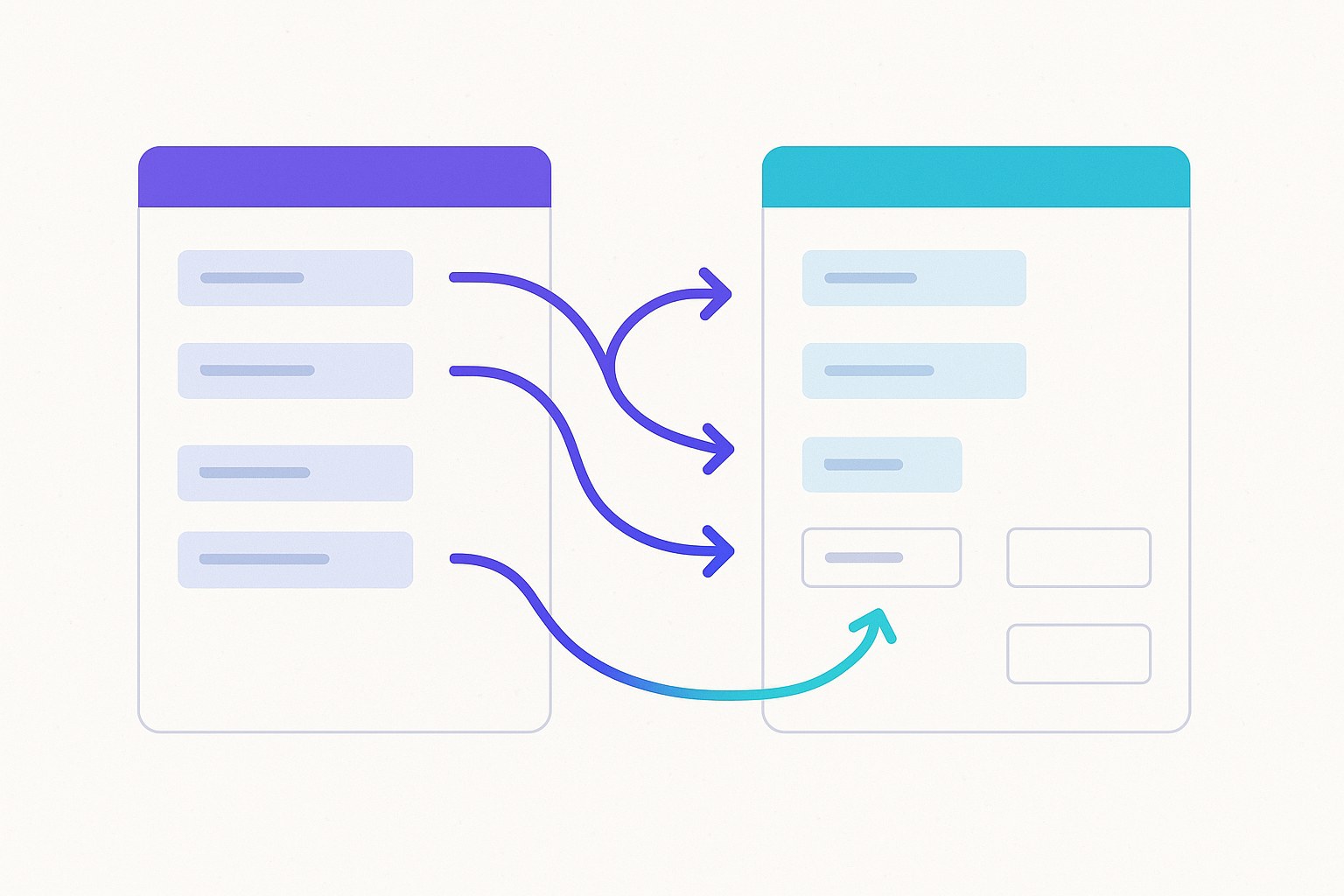
Your Keap account holds more than names and emails. It holds the custom fields you built over the years: lead source, membership level, renewal date, referral partner. CRM Importer lists every Keap standard and custom field and lets you decide where each one lands in GoHighLevel: an existing GHL custom field, a new one created for you, or nowhere at all.
Mappings are saved per account pair, so a repeat import is instant.
What is custom field mapping in a Keap to GoHighLevel migration?
Keap (formerly Infusionsoft) and GoHighLevel store contact data differently. Field mapping is the step where you tell the migration which Keap field feeds which GHL field.
In CRM Importer this happens on the Map fields to GoHighLevel step of the "Infusionsoft → GoHighLevel" import page. Every Keap standard and custom field is listed on one screen, and you choose an action for each.
Which contact fields are imported without mapping?
Core contact details go to GoHighLevel automatically. Every imported contact gets:
- First name and last name
- Phone
- Address line 1, city, state, postal code and country
On top of these, every field you map is pushed too. Anything you skip stays in Keap.
What are your choices for each Keap field?
Each field on the mapping screen has three options:
| Option | What happens | Use it when |
|---|---|---|
| Skip | The field is not imported | The data is outdated or you no longer need it |
| Map to GHL field | Values go into an existing GHL custom field you choose | You already built the field in your GHL sub-account |
| Create new in GHL | A matching custom field is created in GHL and filled | The field doesn't exist in GHL yet |
Two buttons speed this up when you have dozens of fields:
- Skip all — set every field to Skip, then switch on only the ones you want.
- Create all in GHL — create a matching GHL custom field for every Keap field in one click.
How do you map fields during an import?
Field mapping is step 3 of the import page. You don't need a developer or a spreadsheet.
- Select your accounts. Choose your Infusionsoft account and your GoHighLevel sub-account. Optionally add a tag filter to import only contacts with a specific Keap tag.
- Review before importing. The dry run shows "Here's what we found in your Infusionsoft account" with your contact count and an estimate ("Estimate only — no charge yet"). Choose options such as the tag history note, orders and invoices, or File Box files.
- Map fields to GoHighLevel. Set each field to Skip, Map to GHL field or Create new in GHL, or use Skip all / Create all in GHL.
- Card and authorisation. Save a card. "No charge now — you'll approve the exact amount after exporting." When exports finish, you approve the Total to charge and the push begins.
Are field mappings saved for repeat imports?
Yes. Mappings are saved per account pair (one Keap account plus one GHL sub-account). The next time you import between the same two accounts, your choices are already in place.
This matters when you:
- Run a small test first. Use the tag filter ("import only contacts with this IS tag") to import a handful of contacts, check the fields in GHL, then run the full import with the same mappings.
- Migrate in phases. Import one tagged segment at a time without rebuilding the mapping each round.
- Retry a failed import. A failed import can be retried from Import history and resumes where it stopped.
Can you map Phone 2 and Phone 3 from Keap?
Yes. Phone 2 and Phone 3 can be mapped to GHL custom fields, so secondary numbers aren't lost. The main phone goes to GHL's phone field.
Phone numbers are cleaned to digits (a leading + is kept). A main phone with fewer than 7 or more than 16 digits, or one GHL rejects, is not sent; the contact is still saved and the number goes into a note titled "Skipped Telephone".
Do fixed contacts use the same mappings?
Yes. After the import, the Failed contacts panel lets you correct contacts with Fix contacts one by one →. When you click Save & retry →, the contact is pushed again with the same field mappings as the bulk run, plus its tags and tag-history note. Your custom field data arrives exactly as it would have the first time.
What does field mapping not cover?
Field mapping covers contact fields. CRM Importer does not migrate Keap companies, opportunities, tasks, appointments, notes (other than the notes CRM Importer writes), campaigns or automations, email history, products or subscriptions as GHL products, or saved cards.
Tags, orders and payment history, and File Box files are handled separately. See all features.
How much does custom field mapping cost?
Field mapping is not a separate line item. You pay per item imported, with no subscription:
| Item | Price |
|---|---|
| Contact pushed | $0.001 |
| Unique tag created | $0.01 (assignments free) |
| Order | $0.10 + $0.02 per additional payment |
| File Box file | $0.20 |
Only successful items are charged. A 10,000-contact migration with 100 tags is about $11 before orders. Full details on pricing.
Why use CRM Importer for your Keap custom fields?
- Nothing hidden: every Keap standard and custom field is shown for you to decide on.
- Less setup in GHL: Create new in GHL builds matching custom fields for you.
- Reuse your work: saved mappings make test runs, phased migrations and retries instant.
- Consistent fixes: corrected contacts use the same mappings as the main run.
Next steps
- Create your account.
- Connect Keap with its official sign-in and connect your GHL sub-account with a Private Integration Token and Location ID.
- Map your fields, review the estimate and start your import.
Questions first? Visit the help center or read the blog.
Frequently asked questions
Can I import Keap custom fields into GoHighLevel?
Yes. CRM Importer lists every Keap standard and custom field, and you can map each one to an existing GHL custom field or create a new matching field in GHL.
Do I have to create custom fields in GoHighLevel before importing?
No. Choose "Create new in GHL" for a field, or click "Create all in GHL", and CRM Importer creates matching custom fields in your sub-account for you.
Are my field mappings saved?
Yes. Mappings are saved per account pair, so the next import between the same Keap account and GHL sub-account starts with your choices already set.
What happens to Keap Phone 2 and Phone 3?
Phone 2 and Phone 3 can be mapped to GoHighLevel custom fields on the Map fields to GoHighLevel step, so secondary numbers are kept.
Can I skip Keap fields I don't need?
Yes. Set any field to Skip, or click "Skip all" and then choose only the fields you want to bring across.
Does field mapping cost extra?
Field mapping is not a separate line item. You pay per contact pushed, unique tag, order and file, with no subscription.
Ready to move from Keap to GoHighLevel?
Connect both accounts, map your fields, and watch the import run. Pay only for what succeeds.