How to Stop Clients Getting Emails When You Import Keap Payment History into GoHighLevel
Recording historical Keap payments in GoHighLevel can trigger a receipt email to every client. Here is the four-page checklist to switch those emails off before you import orders, and when to turn them back on.
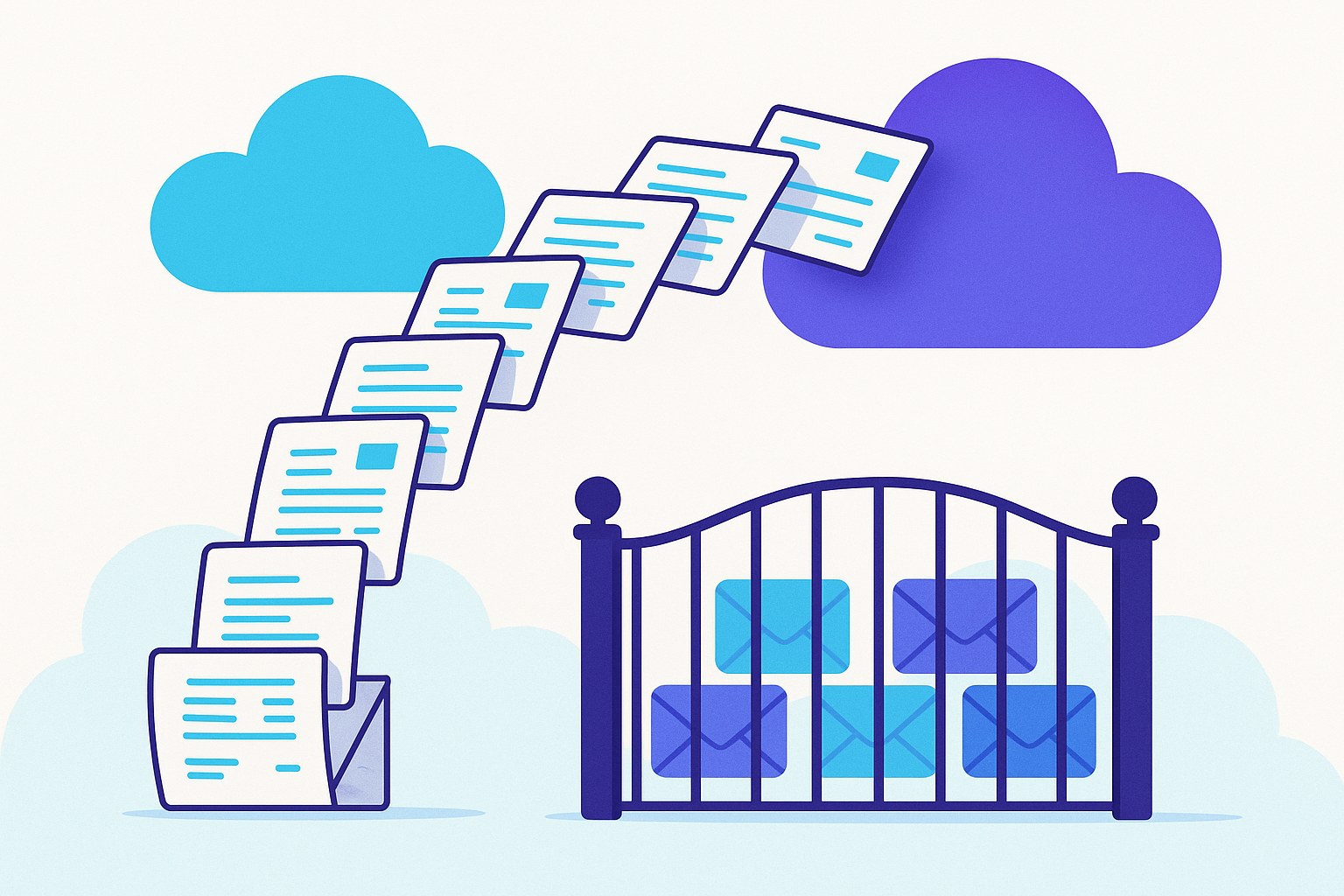
When you import Keap orders, CRM Importer records each historical payment on a GoHighLevel invoice. If GoHighLevel's payment and invoice emails are still on, GoHighLevel (not CRM Importer) emails each contact for every historical payment recorded. To prevent this, switch off those emails in four places in your GHL sub-account before you start. The import page will not let you start an order import until you confirm you have done this.
Why would clients get emails during an import?
CRM Importer never emails your contacts. It creates an invoice for each Keap order (numbered IS-<Keap order id>) and records the cash payments on it, one at a time in date order.
GoHighLevel treats each recorded payment like a new one. With receipts and notifications on, GHL sends a receipt or invoice email to the contact every time a payment is recorded. A client with ten past payments could get ten emails about money they paid years ago.
Which GoHighLevel settings do you need to switch off?
There are four pages. Switch off every payment and invoice email on all four.
| # | Page in your GHL sub-account | What to switch off |
|---|---|---|
| 1 | Payments → Settings → Receipts | "Automatic sales receipts for payments" |
| 2 | Payments → Settings → Notifications | Everything |
| 3 | Payments → Settings → Team notifications | Everything |
| 4 | Payments → Invoices → Settings | Everything on both the Customer and Team tabs |
You do not need to find these pages yourself. The import page links straight to each one in the sub-account you selected.
How do you switch off the emails step by step?
1. Select the correct sub-account
- Open the Infusionsoft → GoHighLevel import page.
- Under Select your accounts, choose your Infusionsoft account and the GoHighLevel sub-account you are importing into.
The checklist links use this sub-account's Location ID, so pick the right one first. If you choose the wrong sub-account, the links will open the wrong account's settings.
2. Turn on order import
- On Review before importing ("Here's what we found in your Infusionsoft account"), tick Import orders & invoices.
- Choose the Currency for the invoices (for example GBP or USD).
A red checklist appears: "Before importing orders, switch off every payment and invoice email in GoHighLevel."
3. Switch off automatic receipts
- Click the first link. It opens Payments → Settings → Receipts in your sub-account.
- Switch off "Automatic sales receipts for payments".
- Save if GHL asks you to.
This is the setting that sends a receipt to the client for each payment, so do not skip it.
4. Switch off payment notifications
- Click the second link: Payments → Settings → Notifications.
- Switch off everything on the page.
5. Switch off team notifications
- Click the third link: Payments → Settings → Team notifications.
- Switch off everything. This stops your own staff being emailed for each historical payment.
6. Switch off invoice emails
- Click the fourth link: Payments → Invoices → Settings.
- Switch off everything on the Customer tab.
- Switch to the Team tab and switch off everything there too.
7. Confirm and start
- Back on the import page, tick "I have switched off all four — no contact will be emailed about these historical payments."
- The Start exporting data → button is only enabled once this box is ticked. Click it.
- Continue through Map fields to GoHighLevel and the card step as normal.
Is there anything else to check before importing orders?
- Business name: invoices show the business name from your GHL sub-account's Business Profile. Set it before importing.
- Your own GHL workflows: if you have built workflows in the sub-account that react to payments or invoices, review or pause them before you import. The four-page checklist covers GHL's built-in payment and invoice emails only.
- Duplicates: if you want each Keap contact as a separate GHL record, turn on Allow Duplicate Contact (Settings → Business Profile) first. Otherwise contacts sharing an email are merged and their orders land on one record.
When can you turn the emails back on?
You can turn the settings back on after the import completes. The progress page shows Import complete! and you also get an email.
If any orders need attention, the Retry and Retry this order tools in the report record payments the same way the main import does. Keep the four pages switched off until you have finished retrying orders. After the import, the card hold stays open for 48 hours as a fix window; once you click Reconcile balance and release (or the window ends), the fix tools for that import close and it is safe to switch emails back on.
What if something goes wrong?
The Start exporting data → button is greyed out
You have not ticked the confirmation box. Tick "I have switched off all four — no contact will be emailed about these historical payments." The button becomes active.
A client says they received a receipt during the import
One of the four pages still has an email switched on (most often Automatic sales receipts for payments).
- Click Abort import. The current batch finishes and the import stops. Only what was already pushed is charged.
- Open each of the four pages and switch off anything still on, including both tabs under Payments → Invoices → Settings.
- Go to Import history and retry the import. It resumes where it stopped; contacts already in GHL are not pushed again.
You only want to test first
Use the tag filter on Select your accounts to import only contacts with one Keap tag. Keep the emails switched off for the test too. Note that importing test orders into the same sub-account you will use for the full migration can leave payments already on an invoice, which shows up later as review. Either void those invoices in GHL before the full import or test in a separate sub-account.
You do not need payment history at all
Leave Import orders & invoices unticked. No invoices or payments are recorded, so the checklist does not apply. Orders are priced at $0.10 per order plus $0.02 per additional payment, so leaving them out also lowers the cost. See pricing.
Next steps
- Read more guides in the help centre.
- See exactly what is migrated on the features section.
- Ready to move your Keap payment history safely? Create your account and connect Keap and GoHighLevel.
Frequently asked questions
Does CRM Importer email my clients when it imports payments?
No. CRM Importer never emails your contacts. Any emails come from GoHighLevel's own receipt, notification and invoice settings, which is why you switch them off before importing orders.
Which GoHighLevel settings must be off before importing Keap orders?
Four pages: Payments → Settings → Receipts ("Automatic sales receipts for payments"), Payments → Settings → Notifications, Payments → Settings → Team notifications, and Payments → Invoices → Settings on both the Customer and Team tabs.
Can I start the order import without switching the emails off?
No. With Import orders & invoices selected, the Start exporting data → button stays disabled until you tick "I have switched off all four — no contact will be emailed about these historical payments."
When is it safe to turn GoHighLevel payment emails back on?
After the import completes. If you plan to retry any orders from the report, keep the emails off until you have finished, because retries record payments the same way.
What should I do if a client gets a receipt during the import?
Click Abort import, switch off whatever is still on across the four pages, then retry the import from Import history. It resumes where it stopped without pushing existing contacts again.
Ready to move from Keap to GoHighLevel?
Connect both accounts, map your fields, and watch the import run. Pay only for what succeeds.